
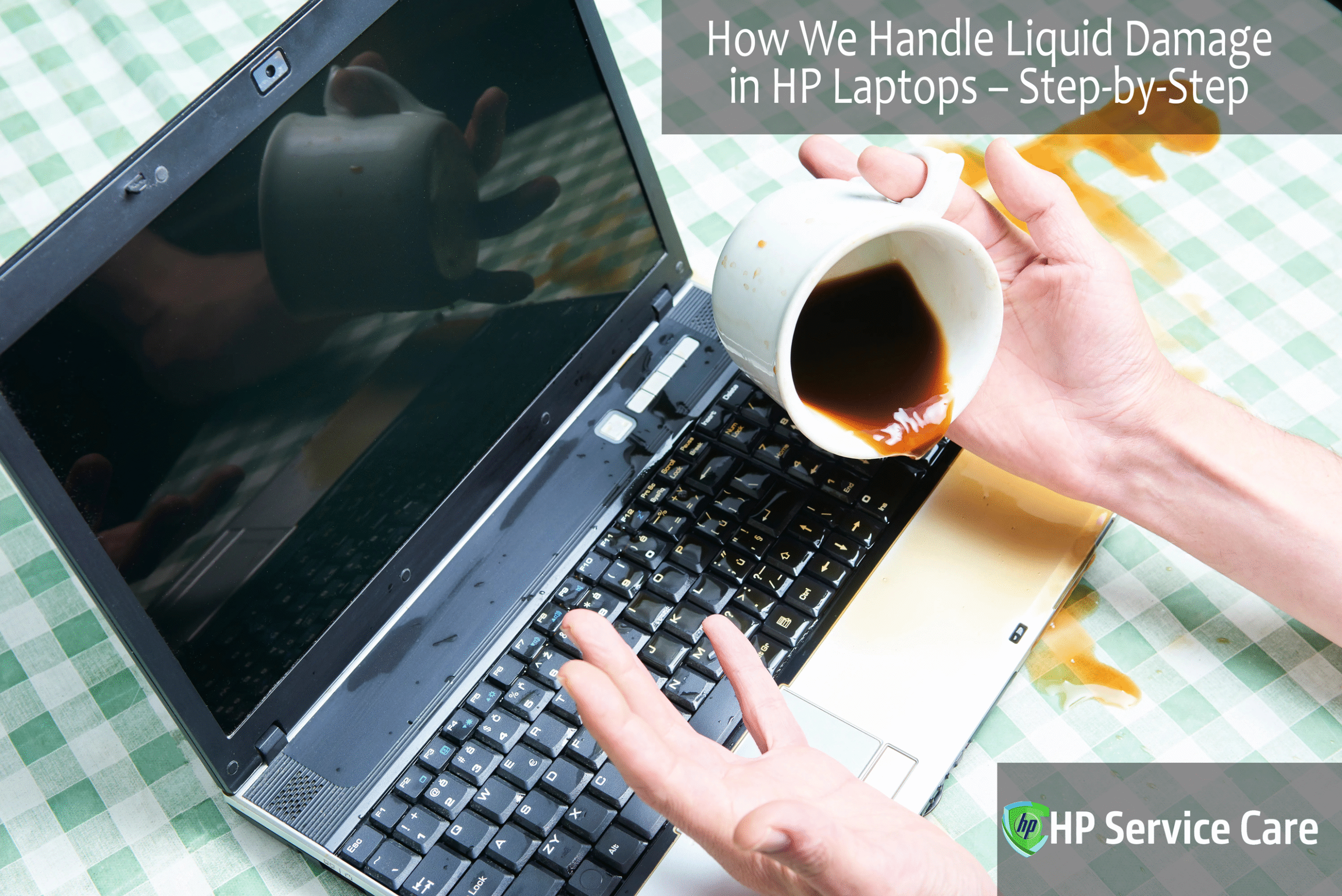
Few things are more stressful than watching tea, coffee, or water spill over your HP laptop. In just a few seconds, what seems like a minor accident can cause serious internal damage — from short circuits on the motherboard to corroded connectors, faulty keyboards, or even a complete system failure. Many users panic and try to turn the laptop back on immediately, often worsening the situation without realizing it.
Why Liquid Damage Is So Dangerous for HP Laptops
Unlike desktop computers, HP laptops have tightly packed internal components with minimal spacing. This means even a few drops of liquid can reach critical parts like the motherboard, touchpad, or keyboard circuits. Liquids such as tea, coffee, or juice are especially harmful because of the sugar and acidity they contain — these residues can lead to corrosion, stickiness, and permanent electrical faults if not cleaned professionally.
How HP Service Care Can Help
At HP Service Care, we specialize in diagnosing and repairing liquid damage in HP laptops of all models, from HP Pavilion and Envy to EliteBook and Victus. Our HP-certified technicians follow a systematic, step-by-step repair process to restore your laptop safely and effectively. Using advanced cleaning tools, chip-level repair technology, and original HP spare parts, we make sure your device gets back to full working condition — without data loss or unnecessary replacements.
Onsite Repair Support Across Kolkata
We understand the urgency when your laptop suffers a spill. That’s why HP Service Care offers quick onsite HP laptop repair services in Kolkata at affordable prices. You can call our service team, and a technician will visit your location, inspect your laptop, and perform the necessary diagnostics right where you are.
So, if your HP laptop has been exposed to any liquid, don’t delay — the faster you act, the better the chances of saving it.
📞 Call HP Service Care at +91 98317 87449 for expert liquid damage repair and onsite support anywhere in Kolkata.
Table of Contents:
Common Causes of Liquid Damage in HP Laptops
Even with careful use, HP laptops are vulnerable to unexpected liquid exposure in everyday situations. Understanding how these accidents happen can help users take precautions and respond quickly when they occur.
1. Accidental Spills on the Keyboard or Touchpad
The most frequent cause of liquid damage is spilling drinks — tea, coffee, water, or soft drinks — directly on the keyboard or touchpad. Since these areas are just above the internal circuitry, the liquid easily seeps through the keys, reaching the motherboard, RAM, and other sensitive components. Even a small spill can cause short circuits or sticky key issues if not cleaned professionally.
2. Exposure to Rain or Damp Environments
Using your laptop near windows during rain or in humid environments like balconies, cafes, or outdoors can allow moisture to enter through vents and ports. Over time, this moisture can corrode metal connectors, leading to rust formation, unstable power connections, and display flickering.
3. Internal Condensation or Humidity Damage
When a laptop is moved from a cool, air-conditioned room to a hot, humid area, condensation can form inside the device. This internal moisture is often invisible but can gradually cause oxidation on the motherboard and circuit layers, leading to performance issues or random shutdowns.
4. Improper Cleaning Methods Using Liquid Solutions
Many users unknowingly spray cleaning liquids or disinfectants directly on the screen or keyboard. These liquids can seep into the internal components, especially around the keys or USB ports, damaging the circuits. Always use a soft, slightly damp microfiber cloth instead of applying liquid directly.
5. Why Immediate Action Is Critical
When a spill occurs, every second matters. Liquids conduct electricity, so even a few drops can trigger short circuits or permanent component failure if the laptop is powered on. The best immediate action is to turn off the laptop, disconnect the charger, and contact a professional service provider like HP Service Care before the damage spreads.
Quick awareness and timely repair can make the difference between a minor issue and a complete motherboard replacement.
If your HP laptop has faced any of these situations, contact HP Service Care immediately for a safe and professional inspection.
Signs That Indicate Liquid Damage
Sometimes, the effects of liquid damage in an HP laptop don’t appear immediately. It may continue to function for a short while before gradually developing problems. Recognizing the early signs can help prevent further internal damage and costly repairs.
1. Laptop Not Powering On or Showing Random Shutdowns
One of the first symptoms of liquid exposure is power instability. Your HP laptop might refuse to start, suddenly shut down, or restart on its own. This often happens when moisture creates short circuits on the motherboard, affecting power flow and internal components.
2. Keyboard or Touchpad Malfunctioning
If certain keys stop working, behave erratically, or the touchpad becomes unresponsive, it’s a strong indication that liquid has seeped beneath the keyboard. Sticky residues from sugary drinks can also cause keys to jam or send incorrect inputs.
3. Flickering Display or Distorted Visuals
Liquids can damage display connectors and internal video circuits, leading to flickering, dim screens, or distorted visuals. In severe cases, the screen may go completely blank due to corrosion on the display cable or GPU area.
4. Burning Smell or Corrosion Around Ports
A faint burning smell or discoloration near USB, charging, or HDMI ports usually means that liquid has caused oxidation or shorting in those regions. This is a serious warning sign — continued use could worsen the damage and make repairs more complex.
5. Sticky or Unresponsive Keys
If your keyboard feels sticky or uneven while typing, it’s likely due to dried liquid residue under the keys. This not only affects comfort but can also trap moisture that corrodes the underlying circuitry.
6. Delayed or No Charging Response
After a spill, your laptop might take longer to charge or not charge at all. This typically indicates that the charging port or battery circuit has been affected by moisture or corrosion. Ignoring this can lead to battery swelling or charging board failure.
Identifying these warning signs early can save your HP laptop from severe damage.
If you notice any of these symptoms, turn off your device immediately and contact HP Service Care for a professional diagnosis and quick liquid damage repair in Kolkata.
What You Should Do Immediately After a Spill (Before Bringing It to Us)
When a spill happens, panic is natural — but your response in the next few minutes can determine whether your HP laptop can be saved. Taking the right steps immediately can minimize internal damage and improve the chances of a successful repair.
Step 1: Turn Off the Laptop Immediately and Unplug the Charger
The first and most critical action is to shut down your laptop right away. Disconnect the power adapter to stop any electrical current from flowing. Keeping it powered on while liquid is inside can lead to short circuits, motherboard failure, or permanent data loss.
Step 2: Disconnect All External Devices and Remove the Battery (If Removable)
Unplug all connected accessories such as USB drives, mouse, or external hard disks. If your HP laptop has a removable battery, take it out carefully. This cuts off all sources of power and prevents further electrical damage inside the device.
Step 3: Gently Dry the External Surface – Avoid Using a Hairdryer or Heat Source
Use a soft, absorbent microfiber cloth or tissue to gently blot the spilled liquid from the surface. Do not use a hairdryer, blower, or direct heat source, as high temperatures can melt plastic components or push the liquid deeper into the circuit board.
Step 4: Place the Laptop Upside Down to Prevent Liquid from Seeping Deeper
Open your laptop as wide as possible and invert it in an upside-down “tent” position. This allows gravity to help drain any trapped liquid instead of letting it spread to internal components like the motherboard or RAM. Leave it this way for a few hours while avoiding any unnecessary movement.
Step 5: Contact HP Service Care Immediately for Professional Assistance
Once you’ve performed the above steps, don’t attempt to power on your laptop. Instead, reach out to HP Service Center right away. Our technicians specialize in liquid damage repair for HP laptops and use advanced tools to clean, dry, and restore your device safely.
⚠️ Important Note: Never try to switch on your laptop before professional inspection. Even if it seems dry externally, moisture trapped inside can cause irreversible electrical damage once powered on.
If your HP laptop has suffered a spill, call HP Service Care at +91 98317 87449 for fast, expert liquid damage recovery service — available onsite across Kolkata.
Our Step-by-Step Process for Handling Liquid Damage
At HP Service Care, we follow a structured and professional repair process to ensure your HP laptop receives the most effective treatment after liquid exposure. Every step is handled with precision to restore your device safely, efficiently, and cost-effectively.
Step 1: Initial Inspection & Damage Assessment
When your laptop reaches us, our first priority is to thoroughly inspect the extent of the damage caused by the liquid spill. This stage is critical because every case of liquid damage is unique — the type of liquid, the duration of exposure, and the affected components can all influence the repair approach.
Detailed Evaluation by Certified Experts
Our HP-certified technicians begin by examining both the exterior and internal components of your laptop. They look for visible signs of corrosion, sticky residues, burnt marks, or moisture around key parts such as the keyboard, touchpad, motherboard, RAM, and display connectors.
Identifying the Type and Impact of Liquid
Different liquids affect electronics differently — water might cause oxidation, while coffee or juice leaves behind sugary and acidic residues that can corrode metal circuits faster. Identifying the type of liquid helps our technicians decide the best cleaning and treatment method for optimal recovery.
Transparent Diagnosis and Estimate
Once the inspection is complete, we prepare a comprehensive diagnostic report that explains:
- The affected areas and the severity of the damage.
- Recommended repair or replacement actions.
- An upfront cost estimate and time frame for the repair.
This ensures complete transparency and allows you to make an informed decision before any work begins.
The initial inspection lays the foundation for a successful repair — helping our team determine the safest, most efficient path to restore your HP laptop to full working condition.
Step 2: Complete Disassembly
Once the initial inspection is completed and the extent of the damage is identified, the next crucial stage is carefully disassembling the laptop. This step allows our technicians to reach every internal component that may have been affected by liquid exposure.
Safe and Systematic Disassembly
At HP Service Care, we follow a structured disassembly process using specialized anti-static tools to prevent any further harm to sensitive parts. Each screw, cable, and panel is removed with precision to ensure that no internal connection is disturbed unnecessarily. Our technicians also take care to document each stage, which ensures accurate reassembly later.
Accessing Internal Circuits and Components
After the outer casing and keyboard are removed, we gain access to critical areas such as the motherboard, CPU, RAM slots, SSD, and charging circuits. Liquids often seep into hidden layers beneath the keyboard or between circuit boards — areas that are impossible to reach without full disassembly.
Identifying Corroded and Moisture-Affected Parts
During this process, our experts inspect every component closely to identify corrosion, moisture traces, and shorted connections. Components that show visible damage or rust are marked for deep cleaning, repair, or replacement depending on their condition.
This careful disassembly ensures that no hidden moisture remains inside, setting the stage for effective cleaning and long-term reliability.
Every HP laptop handled at HP Service Care goes through this meticulous process to guarantee a safe and complete recovery from liquid damage.
Step 3: Professional Cleaning & Drying
After disassembly, the next and most vital phase in the repair process is deep cleaning and drying. This step helps remove every trace of liquid, residue, and corrosion to prevent future electrical faults and ensure stable laptop performance.
Advanced Cleaning Techniques for Complete Restoration
At HP Service Care, we use a combination of isopropyl alcohol cleaning and ultrasonic cleaning technology to thoroughly clean each affected component.
- Isopropyl alcohol helps dissolve moisture and contaminants without damaging delicate circuits.
- Our ultrasonic cleaning machines use high-frequency sound waves to reach and clean microscopic areas that manual methods can’t access.
This dual process effectively removes dirt, sugar residues, and oxidation caused by water, tea, coffee, or other liquids.
Anti-Corrosion Treatment for Long-Term Protection
Once cleaned, we apply a special anti-corrosion solution on metal contacts and connectors. This protective layer prevents rust formation and strengthens the circuitry against future moisture exposure.
Controlled Drying in a Static-Free Environment
After cleaning, all parts are carefully dried in a temperature-controlled, static-free chamber. This ensures that no residual moisture remains trapped inside the circuits. We avoid using high heat, which could warp delicate components, and instead rely on gentle airflow and stable humidity control for safe drying.
This meticulous cleaning and drying process not only restores damaged parts but also enhances the long-term reliability of your HP laptop — ensuring it performs as smoothly as it did before the spill.
Step 4: Circuit Board and Component Repair
Once the cleaning and drying process is completed, our focus shifts to repairing or replacing the damaged electronic components. This stage is where the actual restoration of your HP laptop’s functionality begins, especially if the liquid has caused electrical or circuit-level damage.
Repairing or Replacing Faulty ICs, Chips, and Connectors
Liquid exposure often leads to short-circuited integrated chips (ICs), burnt connectors, or damaged transistors on the motherboard. Our HP-certified chip-level technicians carefully test each section of the circuit board to identify faulty elements.
Using micro-soldering tools and precision instruments, we repair or replace the affected chips, resistors, and connectors — restoring stable current flow throughout the board.
Testing Peripheral Components Individually
After the internal board repair, we individually test all key external components such as the keyboard, charging port, battery, and touchpad. This ensures that each unit is working perfectly and that no residual corrosion or circuit fault remains. Any part that fails testing is either repaired or replaced with genuine HP components to maintain long-term reliability.
Chip-Level Motherboard Repair for Severe Damage
In cases where the motherboard is heavily affected by liquid, we perform advanced chip-level motherboard repair. This involves identifying and restoring damaged circuits at the microscopic level using specialized tools and heat-controlled soldering stations.
Our expertise in chip-level diagnostics and rework allows us to save most motherboards that would otherwise need complete replacement — helping customers save significant costs.
Through this detailed repair process, HP Service Care ensures your laptop’s internal systems are fully revived, stable, and ready for reassembly and testing.
Step 5: Reassembly & Performance Testing
After the internal components have been thoroughly cleaned, repaired, and restored, our next focus is to reassemble your HP laptop with precision and ensure that every part functions exactly as it should. This stage is crucial for verifying the complete recovery of the device.
Careful and Systematic Reassembly
Our technicians follow a methodical reassembly process, using the documented disassembly notes to ensure every screw, cable, and connector returns to its exact position. Each internal component—motherboard, battery, display, and keyboard—is securely fitted and reconnected. We also apply fresh thermal paste to the processor (if required) for better heat management and long-term stability.
Comprehensive Hardware and Software Diagnostics
Once the laptop is physically reassembled, we run a series of diagnostic tests to confirm that all hardware and software systems are functioning properly. These include:
- Motherboard and RAM stability tests
- Keyboard and touchpad responsiveness checks
- Display and GPU performance verification
- Audio, Wi-Fi, and USB port functionality tests
This ensures that no part of the system has been overlooked or compromised during the repair.
Testing Thermal Performance, Display Output, and Charging Cycles
We then evaluate the thermal performance to make sure the laptop stays cool under normal operation. The display output is checked for clarity, color accuracy, and brightness consistency. Finally, we test the charging port and battery cycle to verify efficient power flow and proper charging behavior.
By the end of this phase, your HP laptop is not only fully reassembled but also rigorously tested for performance and reliability — ensuring it’s ready to deliver optimal results just like a brand-new device.
Step 6: Final Quality Check
After reassembly and performance testing, the final step in our liquid damage repair process is a thorough quality check. This ensures that your HP laptop is fully reliable and ready for everyday use without any hidden issues.
Multiple Quality Assurance Tests
At HP Service Care, we conduct comprehensive quality tests covering all critical aspects of your laptop. These include:
- Hardware stability checks to confirm that the motherboard, RAM, and peripheral components are functioning perfectly.
- Performance and stress tests to ensure the processor, graphics, and memory handle workloads efficiently.
- Battery and charging cycle verification to guarantee proper power management.
- Keyboard, touchpad, and display inspection to ensure full responsiveness and visual clarity.
These tests help detect any residual issues from liquid exposure before the laptop is returned to you.
Returning Laptops Only After Passing All Checkpoints
We believe in delivering reliable and long-lasting repairs, so your laptop is returned only after it passes every quality checkpoint. This final step guarantees that your HP laptop works like new, giving you peace of mind and confidence in its performance.
At HP Service Care, our rigorous final quality check ensures that every liquid-damaged HP laptop leaves our service center fully restored, safe, and ready for regular use.
Why Choose HP Service Care for Liquid Damage Repair
When your HP laptop suffers liquid damage, choosing the right service provider can make all the difference. HP Service Care combines expertise, advanced technology, and customer-focused solutions to ensure your laptop is repaired safely and efficiently.
HP-Certified Technicians with Years of Experience
Our team consists of HP-certified professionals who have extensive experience in handling liquid damage across all HP laptop models. Their expertise ensures precise diagnostics, accurate repairs, and a high success rate in restoring affected laptops.
Advanced Tools and Chip-Level Repair Facility
We use state-of-the-art repair tools and chip-level technology to fix even the most complex internal damage. From shorted ICs to motherboard corrosion, our facility is equipped to handle intricate repairs that many service centers cannot.
Genuine HP Spare Parts with Warranty Options
At HP Service Care, we use only genuine HP replacement parts to maintain your laptop’s performance and durability. All parts and repairs come with warranty options, giving you peace of mind for long-term reliability.
Onsite Repair and Free Pickup/Drop Service in Kolkata
To make the repair process hassle-free, we offer onsite support and free pickup/drop services across Kolkata. This means you don’t have to worry about transporting your damaged laptop — our team comes to you, assesses the device, and carries out repairs efficiently.
Transparent Pricing and Customer-First Approach
We prioritize honest communication and transparency. You receive a clear diagnostic report and cost estimate before any work begins. Our customer-first approach ensures you are informed at every step and never face hidden charges.
Choosing HP Service Care guarantees professional liquid damage repair, reliable performance restoration, and a seamless, stress-free service experience for your HP laptop.
Prevention Tips to Avoid Future Liquid Damage
Once your HP laptop has been repaired, taking proactive steps can help prevent liquid damage from happening again. Simple precautions can significantly extend the life of your device and avoid costly repairs in the future.
Keep Liquids Away from Your Laptop While Working
The simplest and most effective prevention is to avoid placing drinks or other liquids near your laptop. Even small spills can seep into the keyboard and internal components, causing short circuits and corrosion.
Use a Keyboard Cover or Spill-Resistant Skin
Investing in a keyboard cover or spill-resistant skin provides an additional layer of protection. These accessories prevent liquids from reaching the internal circuitry while still allowing comfortable typing.
Avoid Using the Laptop on Wet or Damp Surfaces
Never place your laptop on wet tables, beds, or floors, and avoid using it in humid or damp environments. Moisture can penetrate through vents and ports, leading to internal corrosion over time.
Regular Cleaning and Maintenance to Prevent Corrosion
Performing routine cleaning and maintenance helps keep your laptop free from dust, moisture residues, and sticky particles. Use a soft, dry microfiber cloth and avoid spraying liquids directly on the device. Regular maintenance also allows you to spot early signs of damage before they escalate.
Following these simple precautions can protect your HP laptop from future liquid damage, ensuring reliable performance and longer device lifespan.
Call-to-Action
Accidents happen, but a liquid spill on your HP laptop doesn’t have to be disastrous. Quick and professional action can save your device from permanent damage.
Immediate Help from HP Service Care
If your HP laptop has come into contact with water, coffee, tea, or any other liquid, don’t panic — HP Service Care is here to help. Our team provides fast, reliable, and affordable liquid damage repair services across Kolkata.
How to Reach Us
- Call Now: +91 98317 87449 for immediate assistance
- Visit: https://hpservicecare.com to learn more and request service
Onsite Support: Available throughout Kolkata for your convenience